
Guide
How to find your Google review link
Your review link is a short URL that opens the “rate and review” box for your Google Business Profile directly. It is the link we program into your badge, and it is useful anywhere you ask for reviews: email signatures, invoices, and text follow-ups.
Google provides it for free inside your Business Profile. Here is how to get it.
Order badges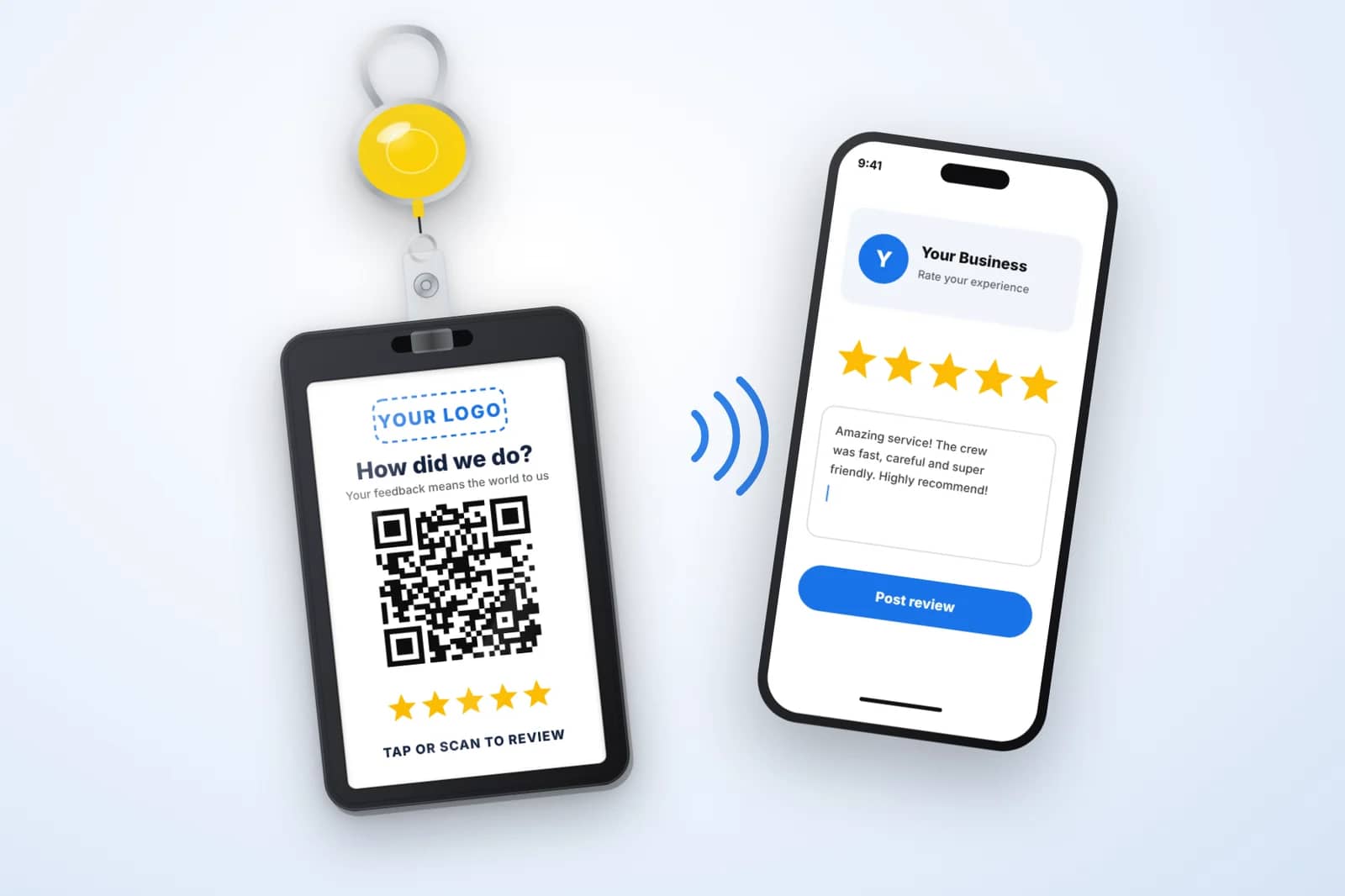
Before you start
- You need to be an owner or manager on the Google Business Profile. If you are not sure, ask whoever set the profile up to add you.
- The profile must be verified. Unverified profiles cannot share a review link.
- Sign in to the Google account that manages the profile.
On a computer
- 1
Search for your business name on Google
While signed in, search your exact business name. Your Business Profile management panel appears at the top of the results.
- 2
Find the reviews tools
Look for the button labeled “Ask for reviews” or “Read reviews,” depending on how Google is displaying the panel that day.
- 3
Copy the link
Google shows a share box with a short link, often starting with g.page. Click the copy button.
- 4
Save it somewhere safe
Paste it into a note or document so you can reuse it. You will paste it into our order form as well.
On a phone
- 1
Open the Google app or Google Maps
Make sure you are signed in with the account that manages the profile.
- 2
Open your profile
Search your business name, or tap your profile photo and choose your Business Profile.
- 3
Tap the review sharing option
Find “Ask for reviews” or a similarly named button in the profile tools.
- 4
Share or copy
Copy the link to your clipboard, or share it to yourself by email so you can find it later.
Test the link like a customer would
Open a private or incognito window and paste the link. You should land on your business with the review box open, asking for a star rating. If you see a generic search results page instead, you may have copied the wrong link, such as your Maps listing URL.
Then test on a phone where you are not signed in as the owner. Some links behave differently when you are logged in as the business, so testing as a stranger shows what your customers will see.
Mistakes that send customers to the wrong place
Using your Maps listing URL
A long google.com/maps link opens your listing, not the review form. Customers then have to hunt for the review button, and many give up.
Copying a link from a duplicate profile
Some businesses have an old or duplicate profile floating around. Make sure the link comes from the profile with your current address and reviews.
Shortening it with a third-party service
Free link shorteners can expire, get flagged, or show ads. Use Google’s link as is.
Multiple locations, one link
Each location has its own profile and its own review link. Do not send reviews for your Chico shop to your Yuba City profile.
Where to use the link besides your badges
- Your email signature, with a short “Review us on Google” line.
- Paid invoices and receipts, below the thank-you message.
- Post-job text messages from your CRM.
- Your website’s contact or thank-you page.
Questions we hear
Does my review link ever change?+
Rarely. It can change if a profile is merged, removed, or reinstated. Test it now and then, especially after any change to your profile.
Can I see who used my link?+
Google does not report clicks on the review link. You can see the reviews that come in, but not who opened the form without leaving one.
What if I cannot find the Ask for reviews button?+
Google moves these tools around occasionally. Make sure you are signed in as an owner or manager, then look in the profile’s home panel or the Reviews tab. Our team can help when you order.
Got your link? Put it on a badge.
Paste it into the order form and we will program it into the NFC chip and print it as a QR code.